IrKeys app manual

IrKeys app manual

Step-by-step manual for the Android app: how to store secrets on your phone, use favorites day to day, and—if you need it—receive keys from your administrator or type them on the PC with the dongle. Use the contents list or move with the buttons. Tap a screenshot to enlarge it.

← → keys to change step

Step 1 of 16

What IrKeys is on the phone

What it is: IrKeys stores on the phone, encrypted, the credentials you use at work: usernames, passwords, one-time codes (OTP), URLs, notes, scripts, and attachments. The vault lives on the device; no cloud account is required.

  1. App only. Free personal manager: groups, keys, and favourites on the phone. It is not the paid product; the commercial value is the dongle (typing on the PC) and, if you administer, IrKeys Manager.
  2. App + USB dongle. The dongle plugs into the PC (or another machine) and behaves as a keyboard. You choose on the phone what to send; the app passes it to the dongle over encrypted Bluetooth and the dongle “types” it into the active field. The PC does not need IrKeys installed or Bluetooth.
  3. App + IrKeys Manager (Windows). The administrator creates keys on the PC, pairs your phone (PAIR), and sends you an encrypted .irkeys file. Only that phone can import it. In many corporate setups you do not create keys: you receive them and use them.
How to start: install the app and create access (steps 2–4). Day-to-day use is usually the Favorites screen (step 5). The dongle and Manager are added when your organization rolls them out.
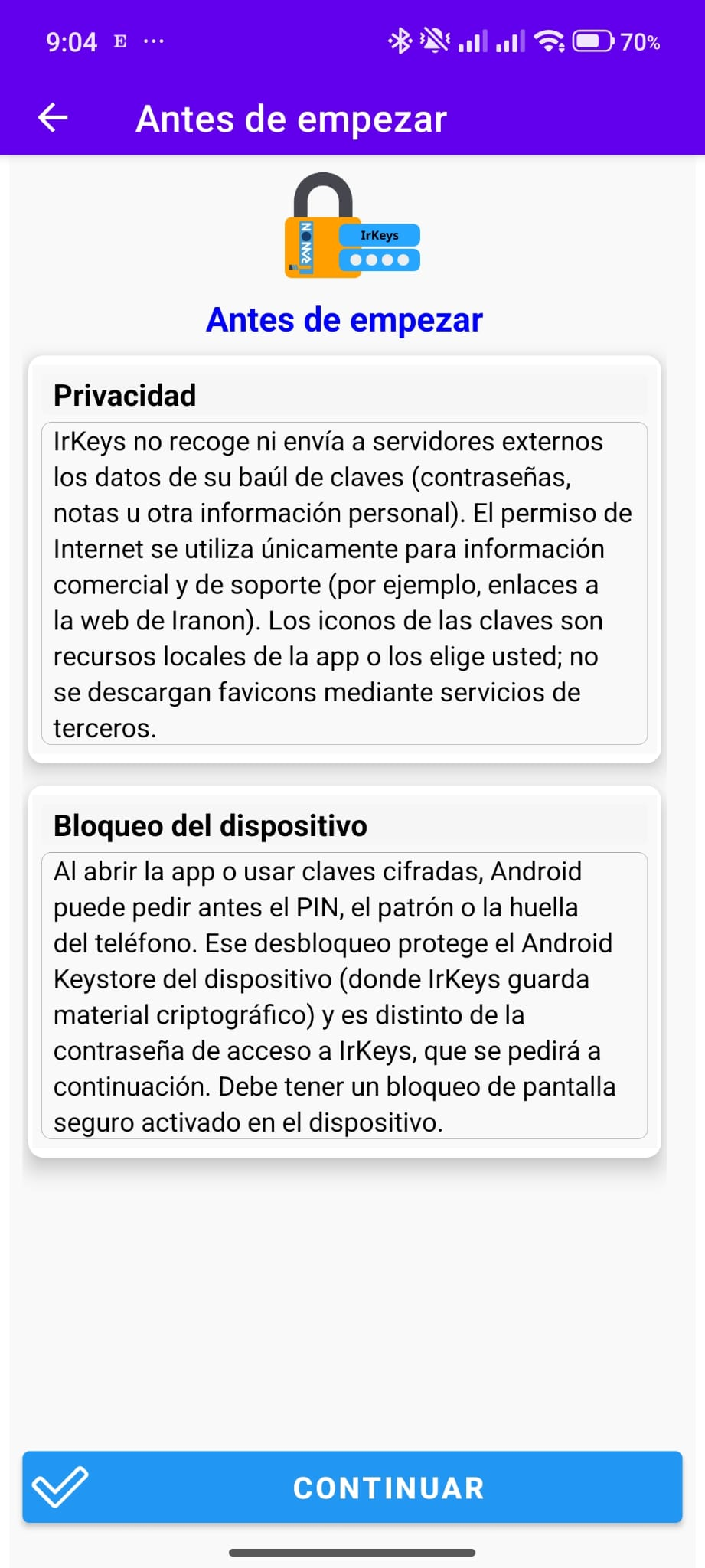
IrKeys home screen
IrKeys app home

Step 2 of 16

Install the app

What you will do: install the official IrKeys app and open it for the first time.

  1. Use the link Iranon or your administrator gives you (Google Play — internal testing or public listing — or a corporate package). Do not download APKs from unknown sites.
  2. Install IrKeys and open it from the icon. The first time, Android may ask for permissions (camera for the QR, Bluetooth and location for the dongle): accept them if you will pair hardware or the administrator.
  3. If the phone does not yet have a vault, you will see the screen to create the access password (step 3). If you already used IrKeys on that device, you go to unlock (step 4).
Important: the app password protects the whole vault. Do not send it by chat, email, or WhatsApp. Always use the Iranon app, not third-party copies.
IrKeys icon
App icon

Step 3 of 16

First time: create access

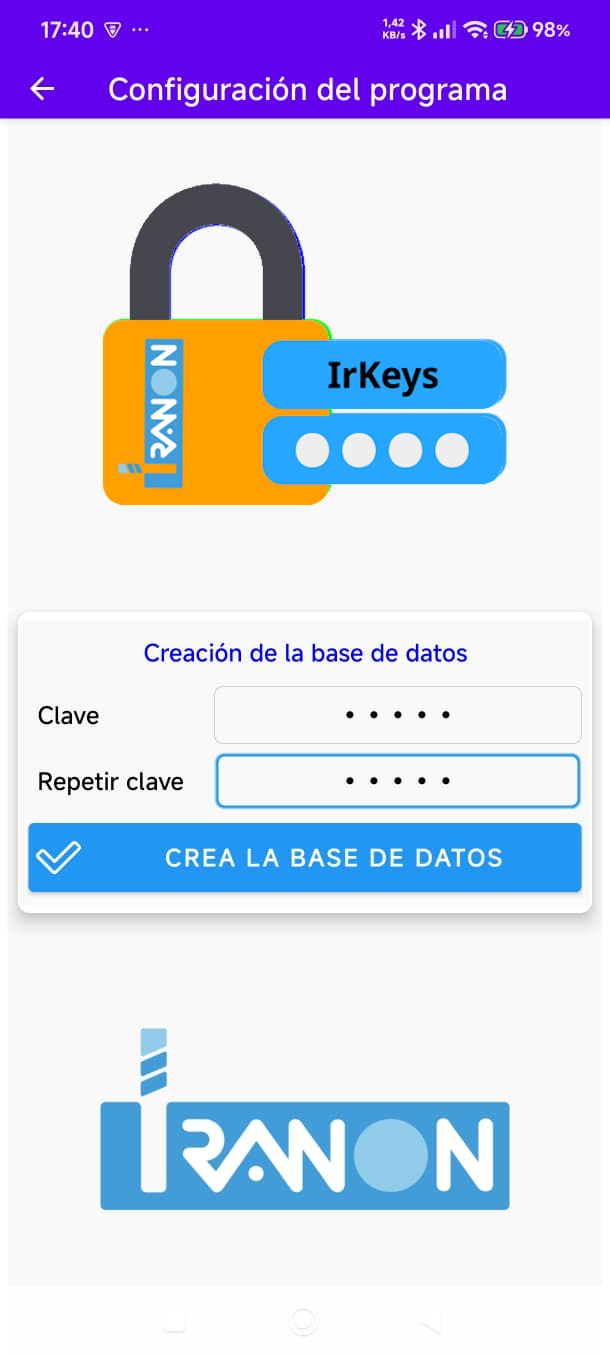
What you will see: a screen to create the IrKeys access password. It is the key to the vault on this phone; it is not the Windows password or the passwords in your key entries.

  1. Enter a password (minimum 5 characters) and repeat it to confirm there is no typing error.
  2. Choose a phrase you remember and nobody else does. Longer and less obvious is better.
  3. If the phone has fingerprint, face, or screen PIN, the app may offer biometric unlock so you do not type every time. It is optional: the password still protects the data if you change phones or reinstall.
  4. When you confirm, IrKeys creates the encrypted database on the device and goes to the unlock screen.
Warning: there is no “I forgot my password”. Without it and without a backup (step 9), the vault contents cannot be recovered.
Tip: store that password somewhere safe (safe, trusted company password manager), not in an unencrypted note on the same phone.
Create access password
Create access (password twice)
Enable fingerprint or biometrics
Fingerprint or other device unlock (optional)

Step 4 of 16

Unlock every day

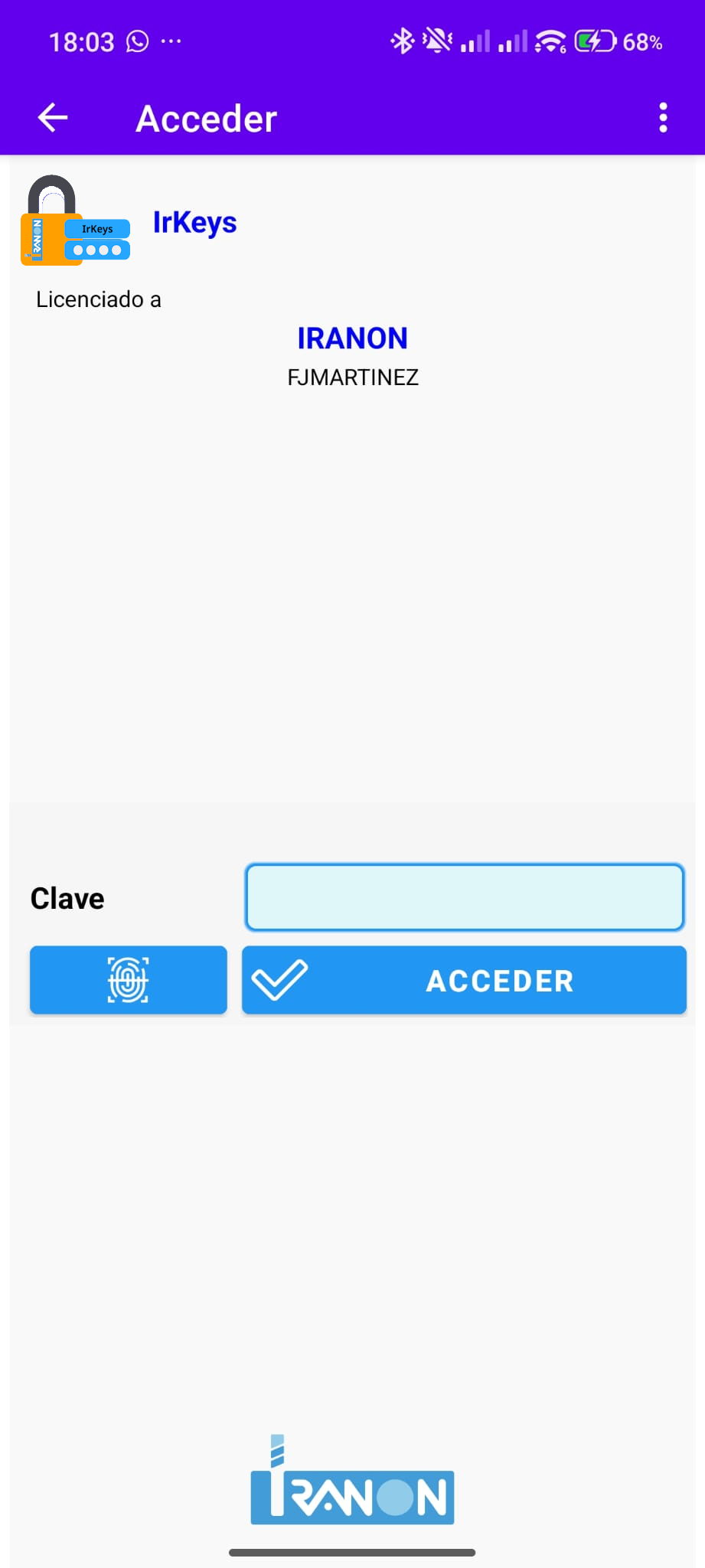
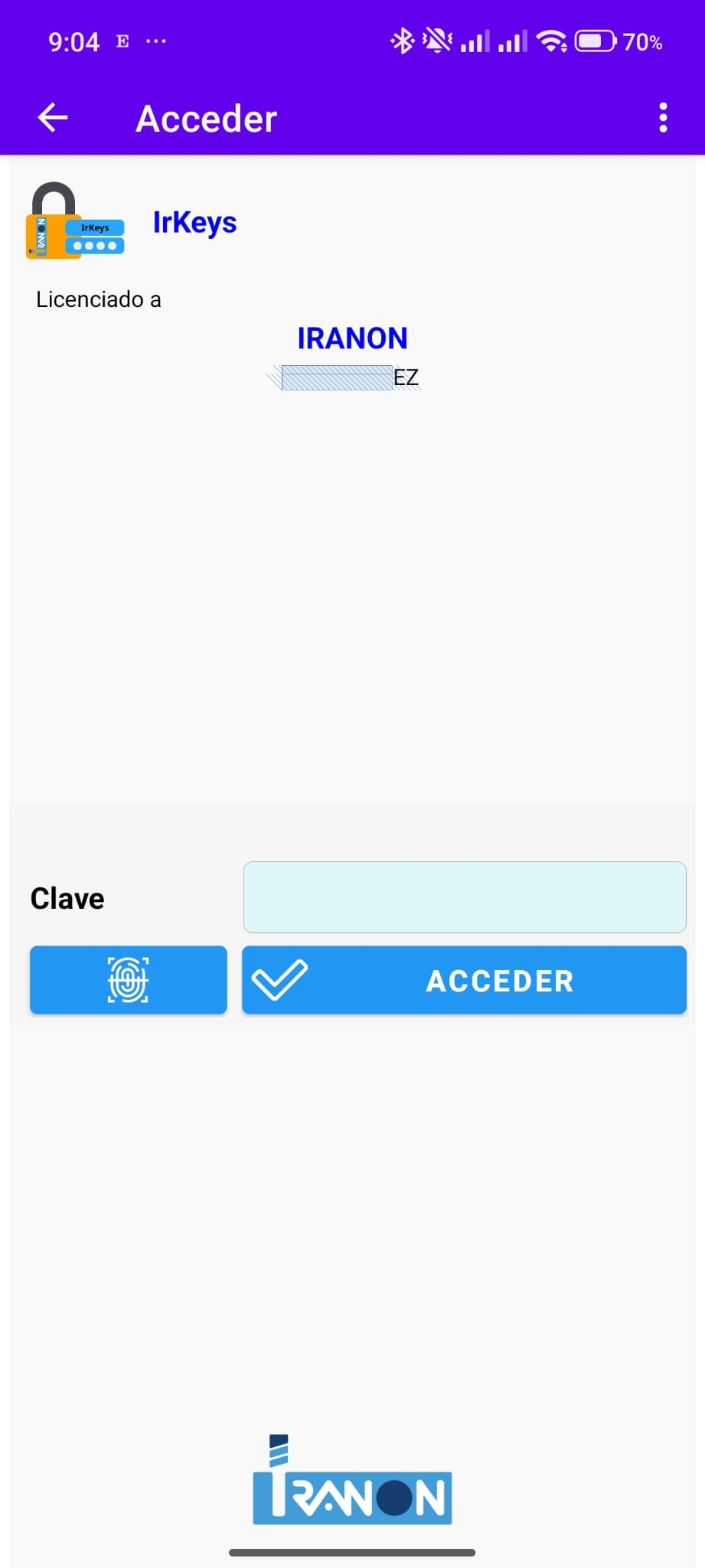
What you will see: each time you open IrKeys (or return after leaving it in the background), you must prove it is you: the app password or the phone’s fingerprint / PIN / pattern, depending on what you configured.

  1. Open IrKeys. If you set up biometrics, the system dialog (fingerprint or screen unlock) may appear right away.
  2. If not, enter the access password from step 3 and continue.
  3. Several failures in a row delay the next attempt (seconds or minutes). This protects against someone guessing passwords at random.
  4. When you leave the app or lock the phone, the session closes: when you return you must unlock again. That way nobody uses your keys if you leave the phone on the desk.
Tip: if the fingerprint fails (wet hands, etc.), always use the IrKeys password. On this screen’s menu you can often change the theme or how unlock works, depending on the version.
Unlock screen
App unlock

Step 5 of 16

Favorites: everyday use

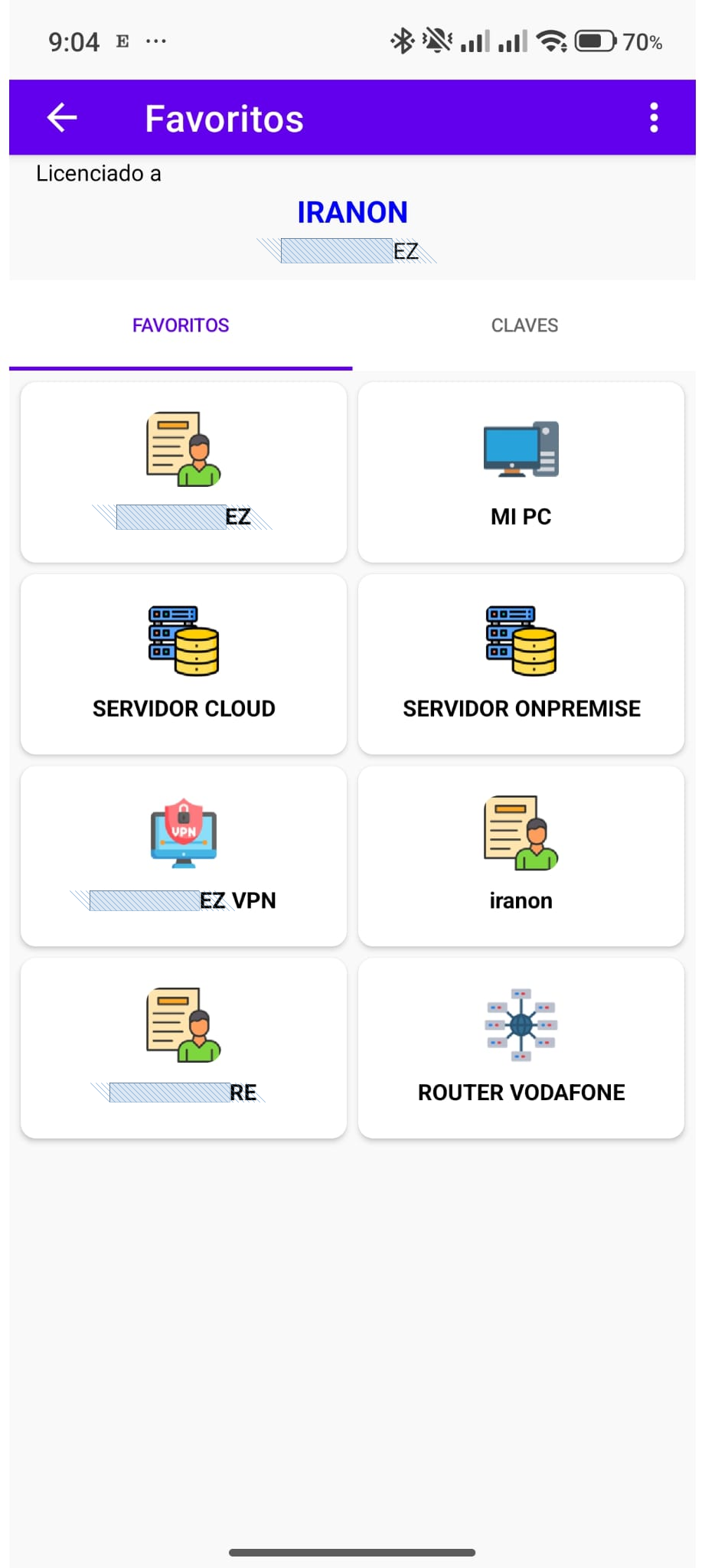
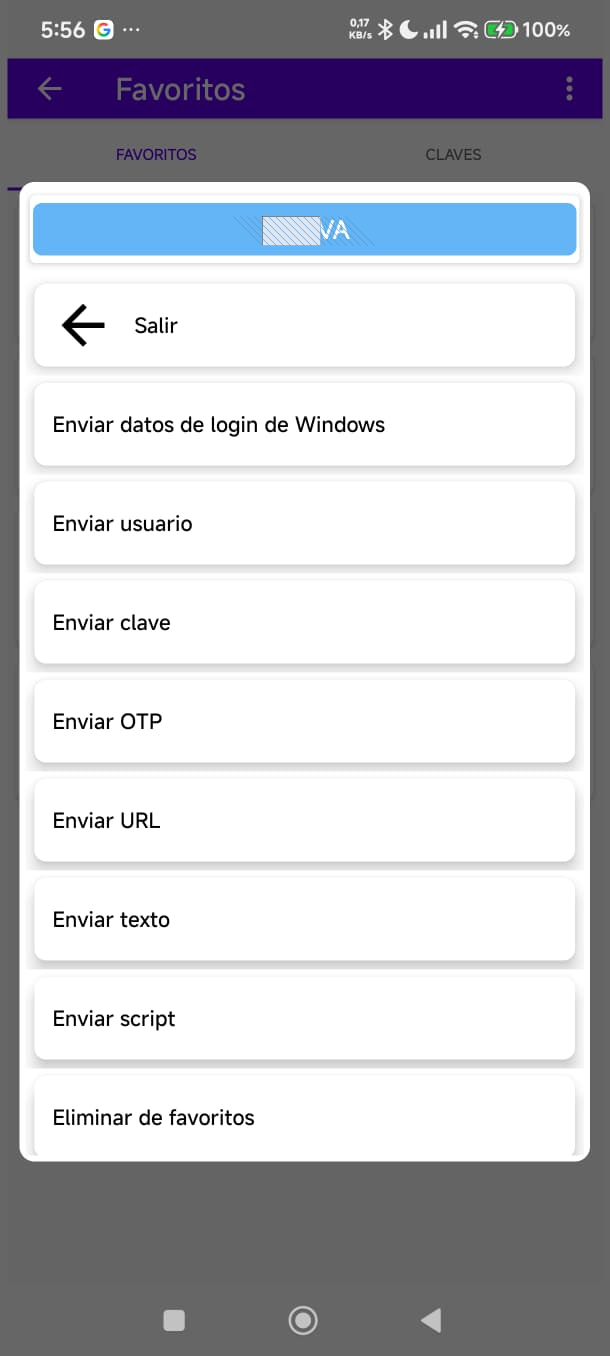
Everyday use: at your workstation almost everything is done from Favorites. There you have your most-used keys at a tap, without searching the tree. With the dongle connected to the PC, from here you send username, password, or OTP to the field that has focus.

  1. After unlocking, open the Favorites tab (next to Keys).
  2. Each tile is a key. You can long-press or use the tile menu for actions.
  3. Send username / password / OTP / URL / text / script: the dongle types that data on the PC. “Windows login” sends username, Tab, password, and Enter in sequence (useful on the sign-in screen).
  4. You can drag tiles to put what you use most first.
  5. To add a favorite: open the key in the tree or its detail and mark it. To remove it, use “Remove from favorites” in the tile menu (the key is not deleted from the vault).
Tip: keep only day-to-day items here (email, VPN, workstation PC). Everything else stays in the tree (step 6).
Favorites screen
Favorites — everyday view
Favorites and send menu
Send menu from a favorite

Step 6 of 16

Key tree: browse groups

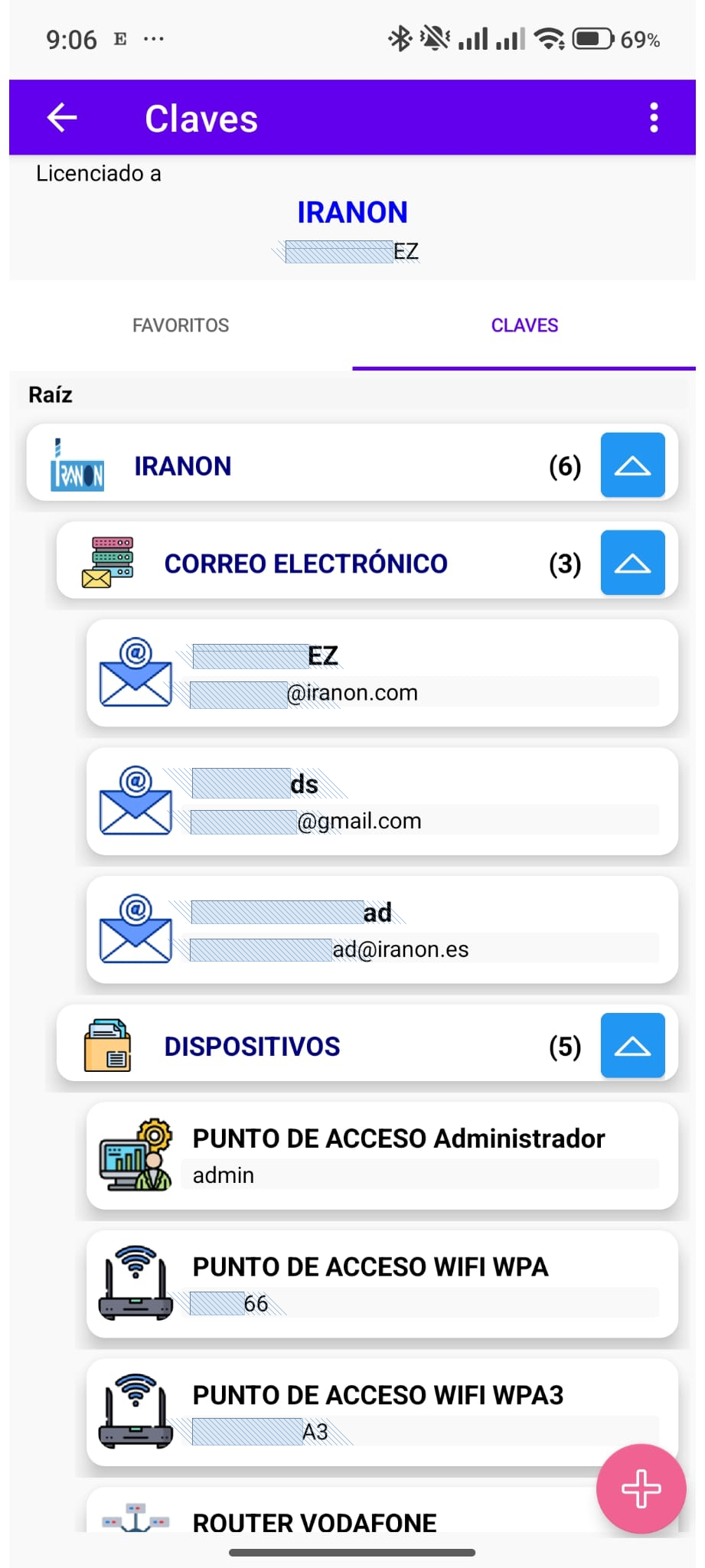
What you will see: the Keys tab is a tree of folders (groups) and entries, like a file explorer. Use it to organize the whole vault, search, create entries, and mark favorites. At the top you often see who the database is licensed to.

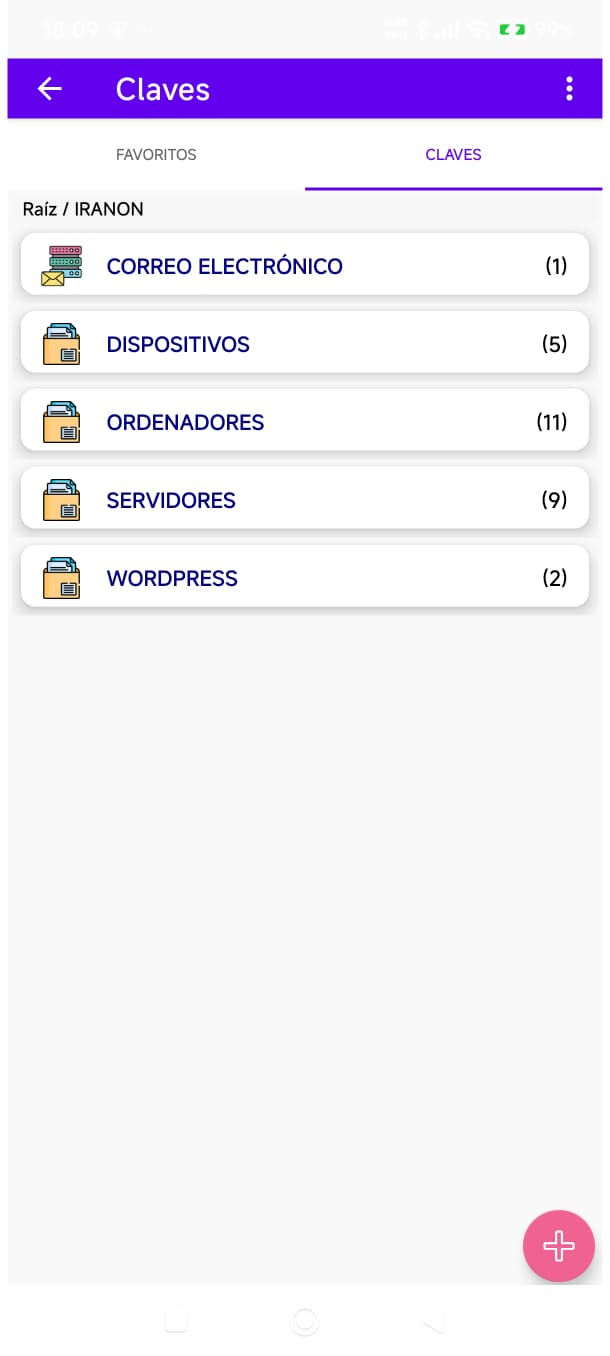
  1. Tap a group (folder) to see what is inside. The number in parentheses shows how many items it contains.
  2. Use the path (“Root / …”) or the back button to go up a level.
  3. Tap a key to open the full entry (username, password, OTP, etc.).
  4. The + button creates a group or a key in the folder you are in. If the app is managed, + may be unavailable (step 15).
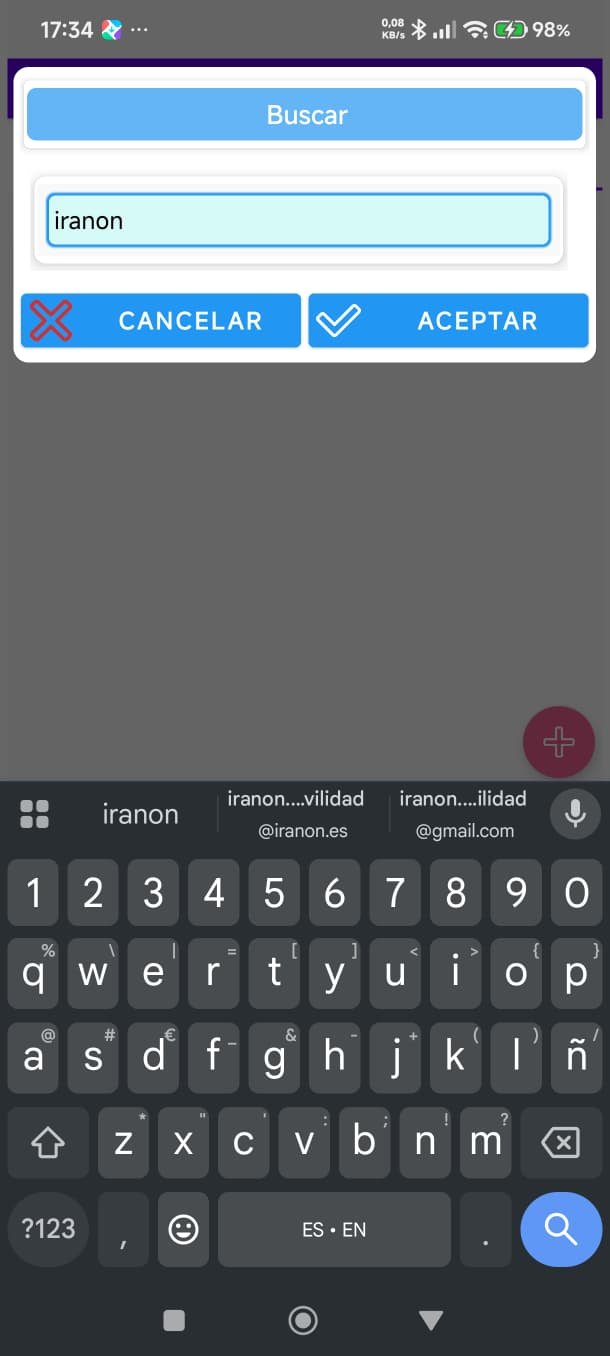
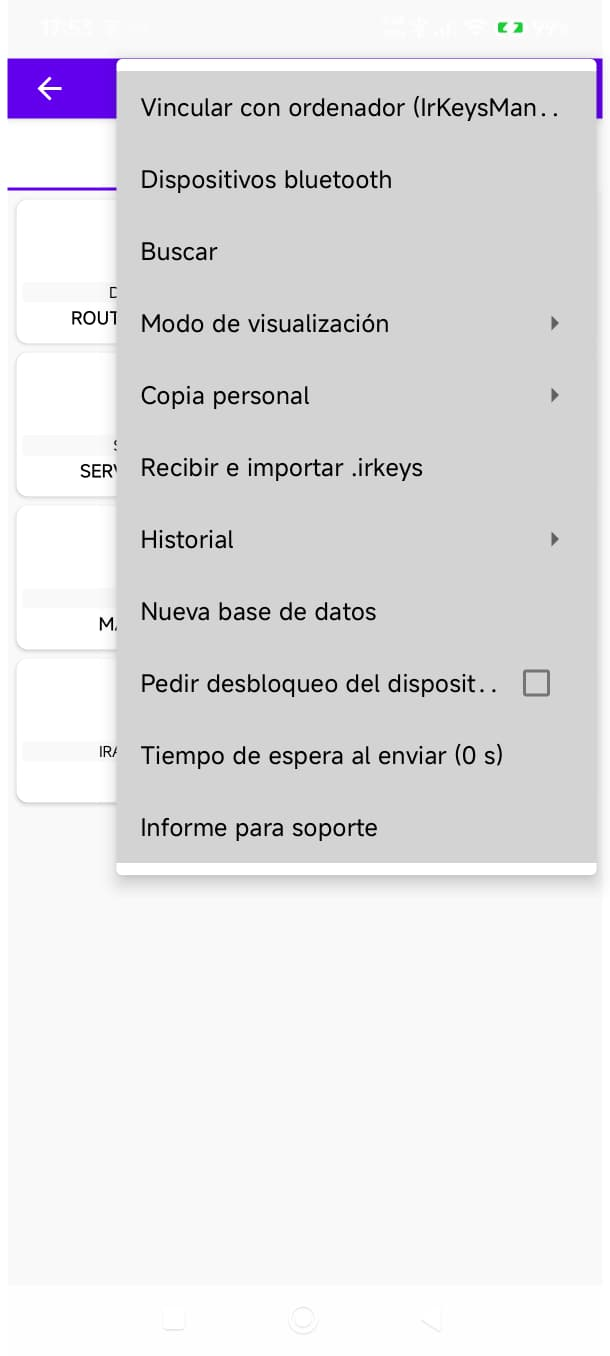
  5. The ⋮ menu (top right) includes Search (magnifying-glass icon), devices (dongles), receive packages from the administrator, backup, and settings. There is no magnifying glass on the bar: search opens from that menu option.
Tip: group by topic (Mail, Devices, Computers). That way the tree does not become an endless list.
Key tree
Tree of groups and keys
Main tree menu
⋮ menu: Search (magnifier), devices, import, backup…
Search in the tree
Search dialog (⋮ menu → Search)

Step 7 of 16

Create and edit a key

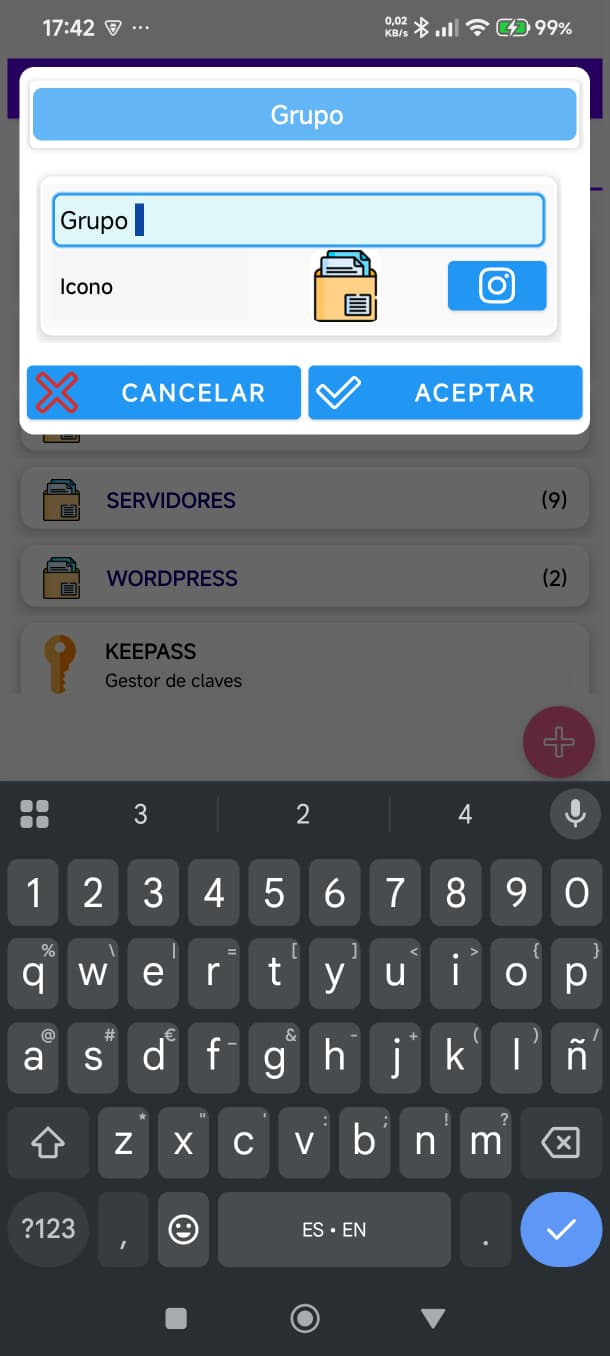
What you will see: first you can create a folder (group) and then a key entry with tabs: Username, free text, script, OTP, etc. The title is required; other fields depend on what you will use.

  1. In the tree, tap +. If you will classify many keys, create a group first (folder name) and enter it.
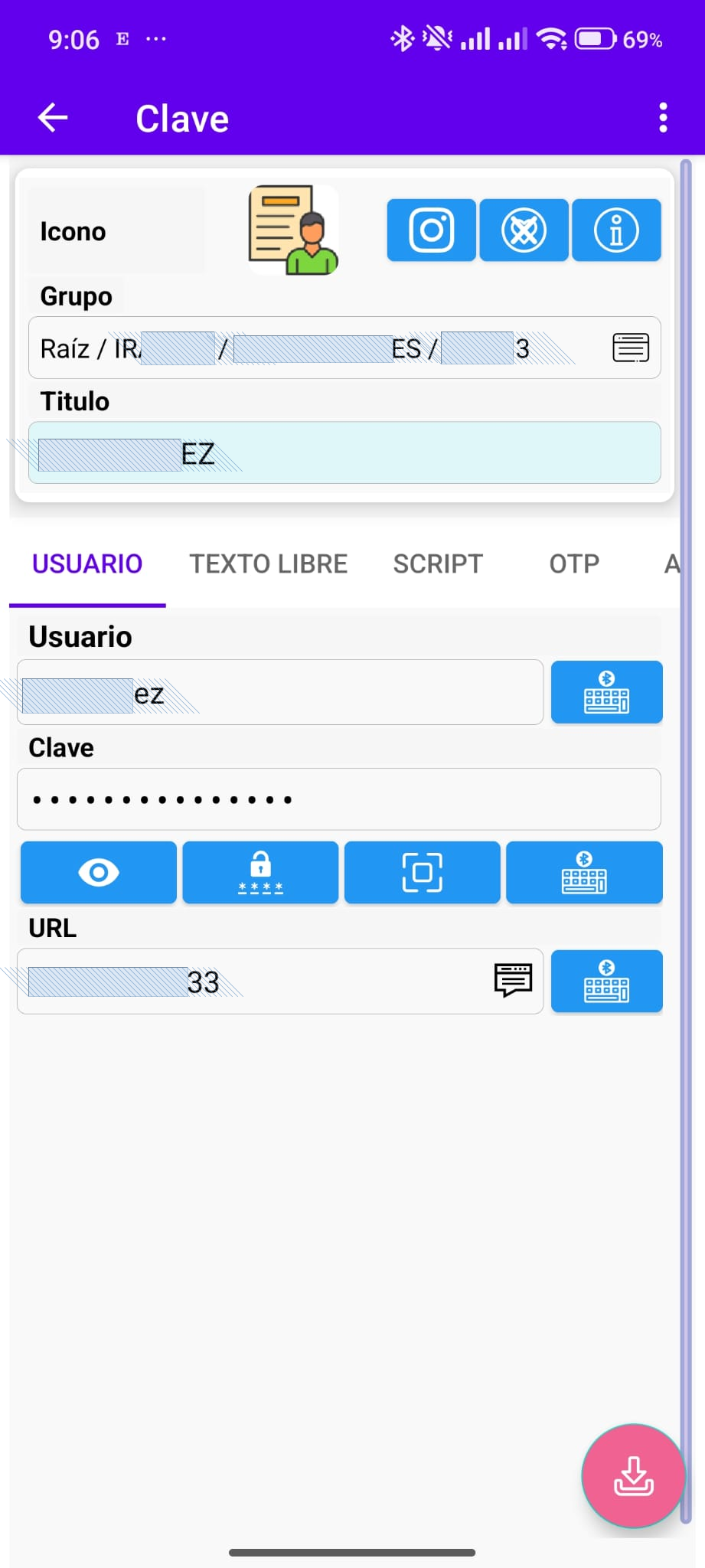
  2. Create a key: enter at least the title. Fill in username and password for a web or Windows login; URL if you want to open or send the address; OTP if that account has two-step authentication.
  3. Save. To change it, open it and use edit (pencil or menu), if your policy allows.
  4. From the entry, the keyboard / Bluetooth icon buttons send that field to the dongle (step 13). The OTP tab shows the code (step 8).
Managed app: the administrator can block creating or editing. In that case keys arrive only via .irkeys files (step 11).
Create a group
Create a group (folder)
Credential entry
Key entry (username, password, URL…)

Step 8 of 16

TOTP / OTP codes

What it is: OTP (TOTP) is the 6-digit code that changes about every 30 seconds, the same kind as Google Authenticator. In IrKeys it lives inside the key entry: you do not need another app.

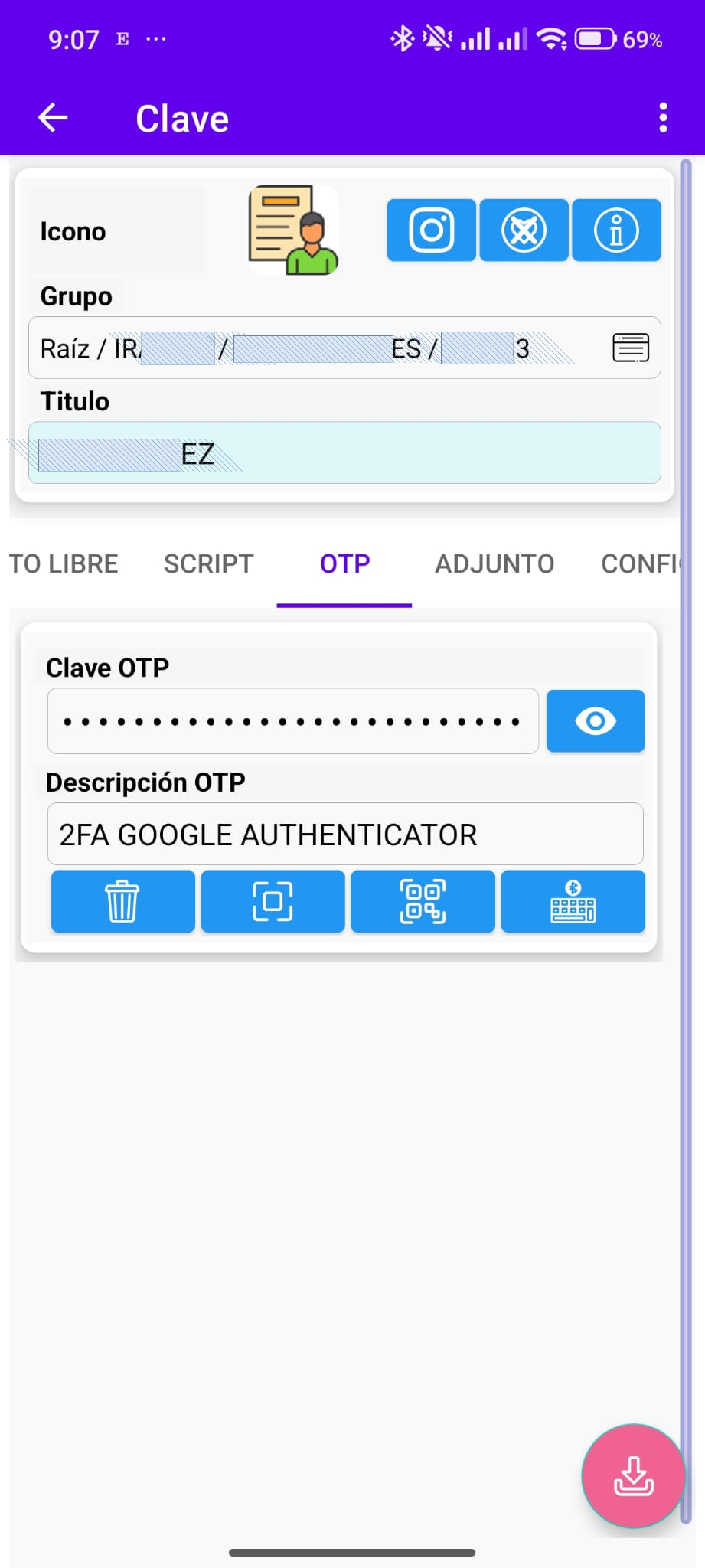
  1. Open a key that has an OTP secret (set by the administrator or by you when editing, often by scanning an otpauth QR).
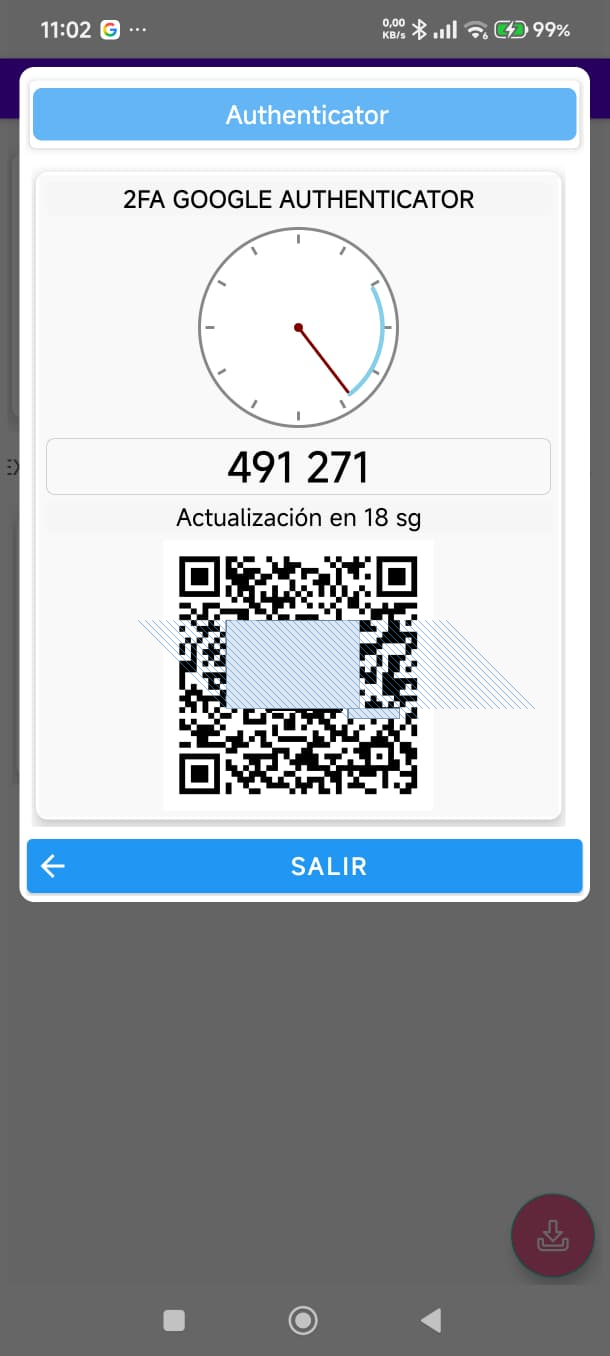
  2. Go to the OTP tab. You will see the code and a bar or timer until the next one.
  3. You can show the code full screen to read it calmly or dictate it.
  4. With the dongle, “Send OTP” types those digits on the PC like a password, into the field that has focus.
Tip: if the website rejects the code, wait for the next cycle (the phone clock must be on time).
TOTP in the entry
OTP in the key entry
OTP code view
OTP code full screen

Step 9 of 16

Personal backup

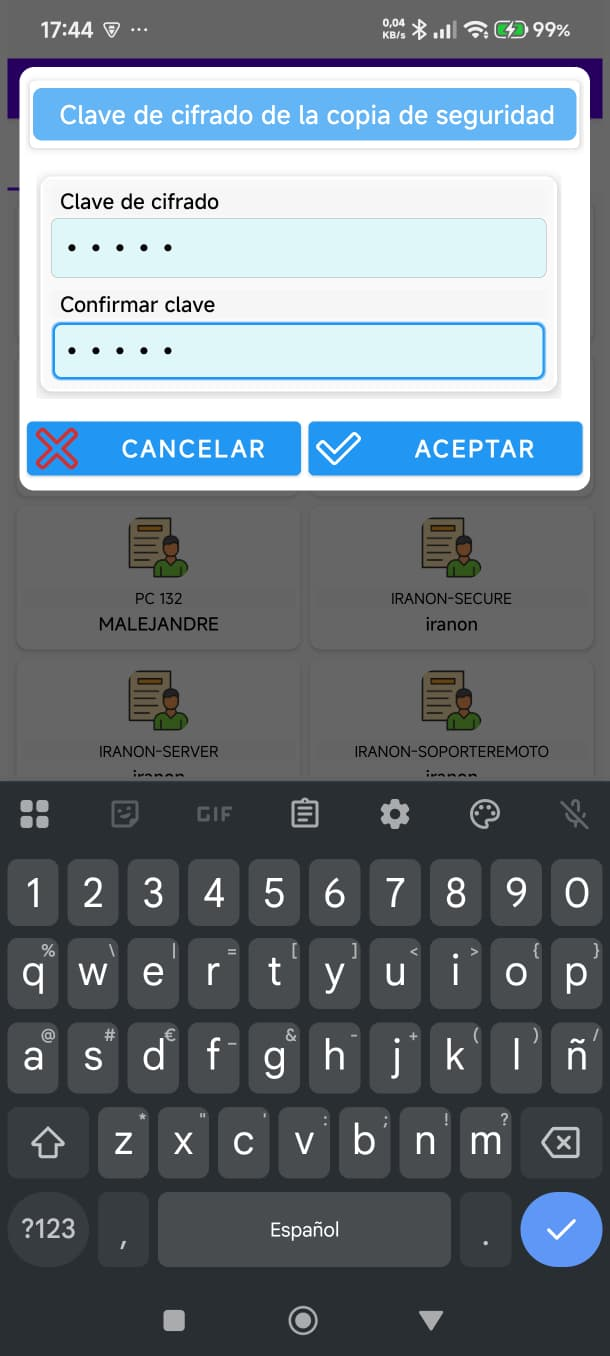
What it is for: an encrypted copy of the vault if you lose the phone, change it, or reinstall the app.

When it makes sense: if you use IrKeys on your own (no IrKeys Manager), the vault is yours and personal backup is available. Blocking backup only applies when there is administration with Manager.
  1. In the tree ⋮ menu, open Backup (export / import).
  2. Export: generate the file and store it off the phone (USB, secure folder). Anyone with the file and the password could restore the vault: treat it as a secret.
  3. Import: on a new phone create or unlock IrKeys and import that copy with the file password.
With IrKeys Manager: if the administrator has disabled “Allow backup”, you will not see the option or it will fail. Then keys arrive via the administrator’s .irkeys.
In IrKeys Manager (Windows): the “Allow backup” checkbox enables or blocks this menu. Without a Manager link, that policy does not apply.
Backup
Backup (export / import)

Step 10 of 16

Pair with IrKeys Manager

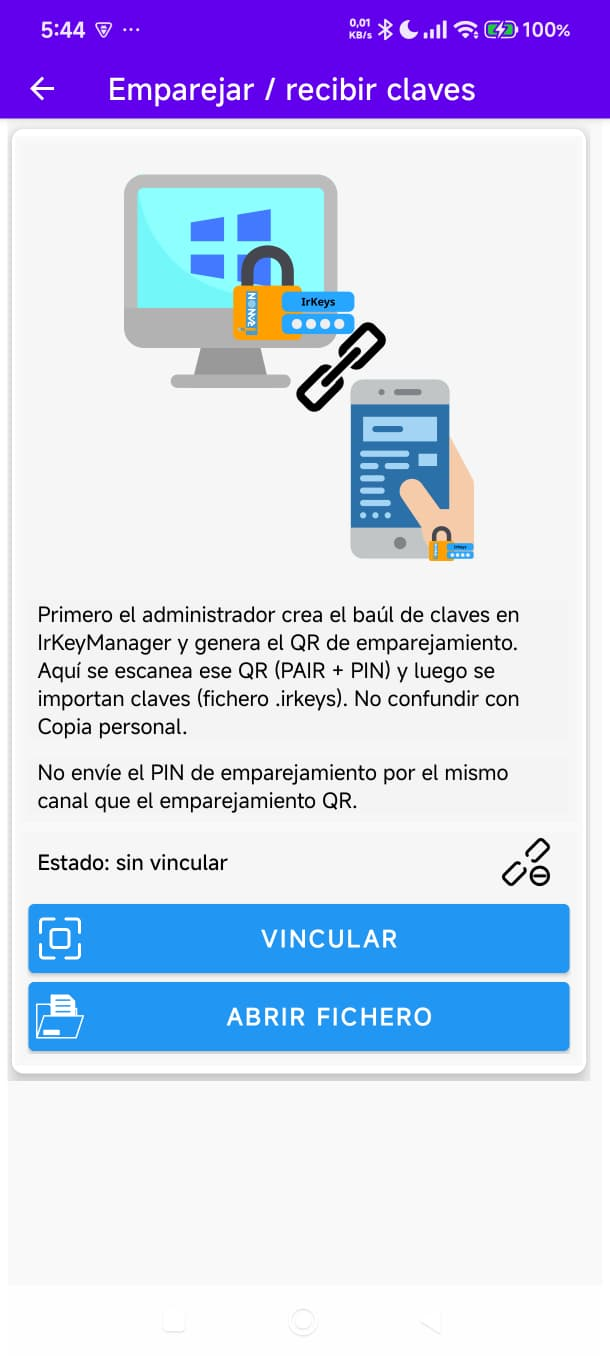
What PAIR does: it links this phone to one database in IrKeys Manager. After that, only that phone can decrypt .irkeys packages issued from that database. It is not the same as pairing the dongle (step 12).

  1. On the phone, open pairing (⋮ menu → receive from administrator / pair, depending on version).
  2. Scan the PAIR QR on the PC screen, or open the .irkeysm1-pair file they sent you, or paste the PAIR text.
  3. Enter the 6-digit PIN. The administrator should give it on another channel (voice, another message), not written in the same email as the QR.
  4. When the app confirms, tell the administrator so they can mark the link on the PC.
In IrKeys Manager (Windows):
  1. Open the database and the phone pairing screen.
  2. Generate the QR (or save the file / copy the PAIR text).
  3. Communicate the 6-digit PIN to the user.
  4. When the phone finishes, mark pairing as confirmed.
Important: a phone links to one database only. To change administrator you must revoke the previous link and repeat PAIR. Revoking invalidates future emissions; it does not change passwords on servers — after someone leaves, rotate sensitive secrets by hand.
Pairing with Manager
Pairing (PAIR) on the phone

Step 11 of 16

Receive and import .irkeys

What a .irkeys is: an encrypted package of groups and keys that Manager issues for your already-paired phone. It may arrive by email, WhatsApp, USB, or shared folder: even if someone intercepts the file, they cannot open it without the PAIR link.

  1. Save the file on the phone (Downloads, Drive, etc.).
  2. In the tree ⋮ menu tap Receive and import .irkeys and choose the file; or open it with IrKeys from the file manager.
  3. Wait until it finishes (progress bar). Do not leave the app halfway.
  4. Check Favorites and the tree: you will see new or updated keys. Ones the administrator deactivated are not imported.
In IrKeys Manager: after PAIR, use “Issue to phone”. Each issue creates a new .irkeys; import again when they send updates.
If it fails: confirm you are paired with that database, that the file downloaded completely, and that you are not opening a PAIR (.irkeysm1-pair) by mistake.
Receive and import irkeys
Import a .irkeys package

Step 12 of 16

Pair the Bluetooth dongle

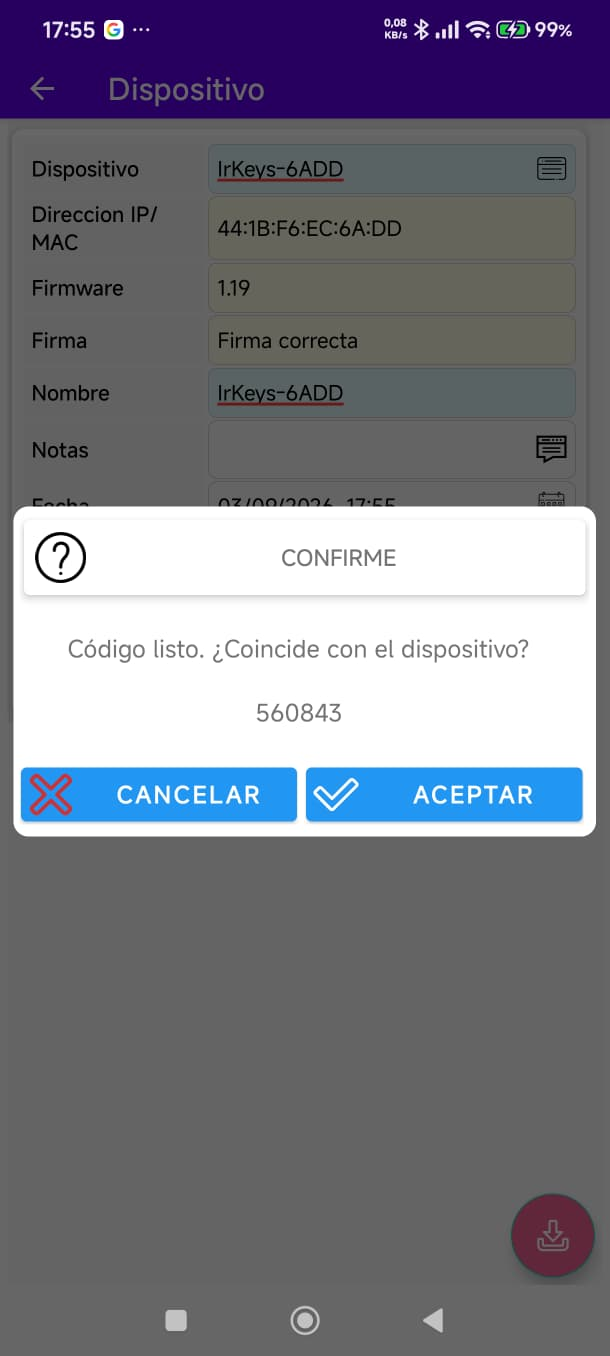
What the dongle is: an IrKeys USB that the PC sees as a keyboard. The phone talks to it over encrypted Bluetooth. Pairing has two phases: first Android system Bluetooth (like any headset or other device), then the link with the IrKeys app. In both phases the IrKeys dongle screen shows the pairing key / code so you can compare it with what the phone or app asks. Without the first phase, the app cannot complete the second.

  1. Plug the dongle into the USB of the machine where you will type (PC, server, kiosk…). Turn on Bluetooth on the phone.
  2. Phase 1 — System Bluetooth: go to Settings → Bluetooth on the phone (not inside IrKeys). Find the IrKeys dongle in available devices and pair it like any other standard Bluetooth device. On the dongle screen you will see the pairing key; enter or confirm it in Android if the system asks.
  3. When the dongle appears as paired / connected in the phone settings, open IrKeys.
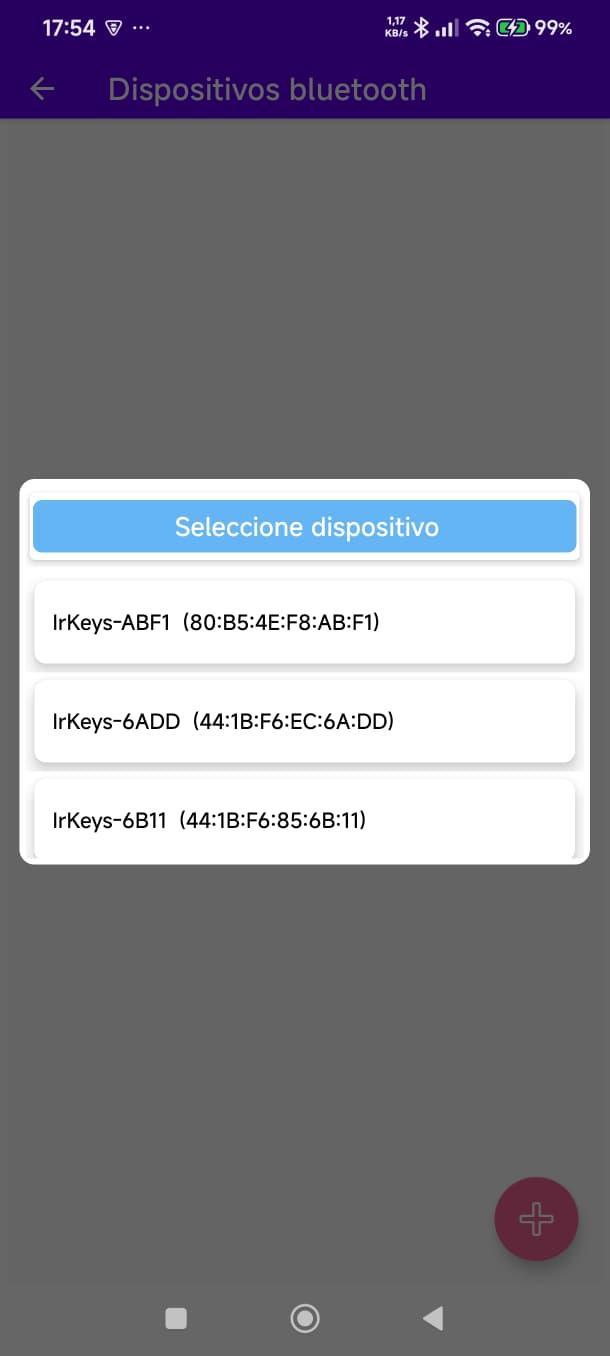
  4. Phase 2 — IrKeys app: ⋮ menu → Devices → add device. The app will look for IrKeys dongles already visible over Bluetooth; choose yours.
  5. Again, the dongle screen shows the 6-digit code. Compare it with the one in the IrKeys app and confirm if they match. That securely links it to IrKeys (not only “known” to Android).
  6. It will stay in the app list for sends. If there are several dongles, IrKeys will use the one assigned to the key or ask which one.
Dongle screen: on the first pairing (system Bluetooth) and the second (IrKeys app) the device shows the pairing key. Always look at it on the IrKeys screen, not only on the phone.
Order matters: system Bluetooth pairing first; then pairing in IrKeys. If you skip phase 1, the app will not find the dongle or the link will fail.
Warning: only IrKeys dongles provisioned by Iranon. A generic USB or a clone will not pair.
Dongle list
Devices / dongles list
Pair BLE dongle
Phase 2: pairing in IrKeys (6-digit code)

Step 13 of 16

Send credentials to the PC

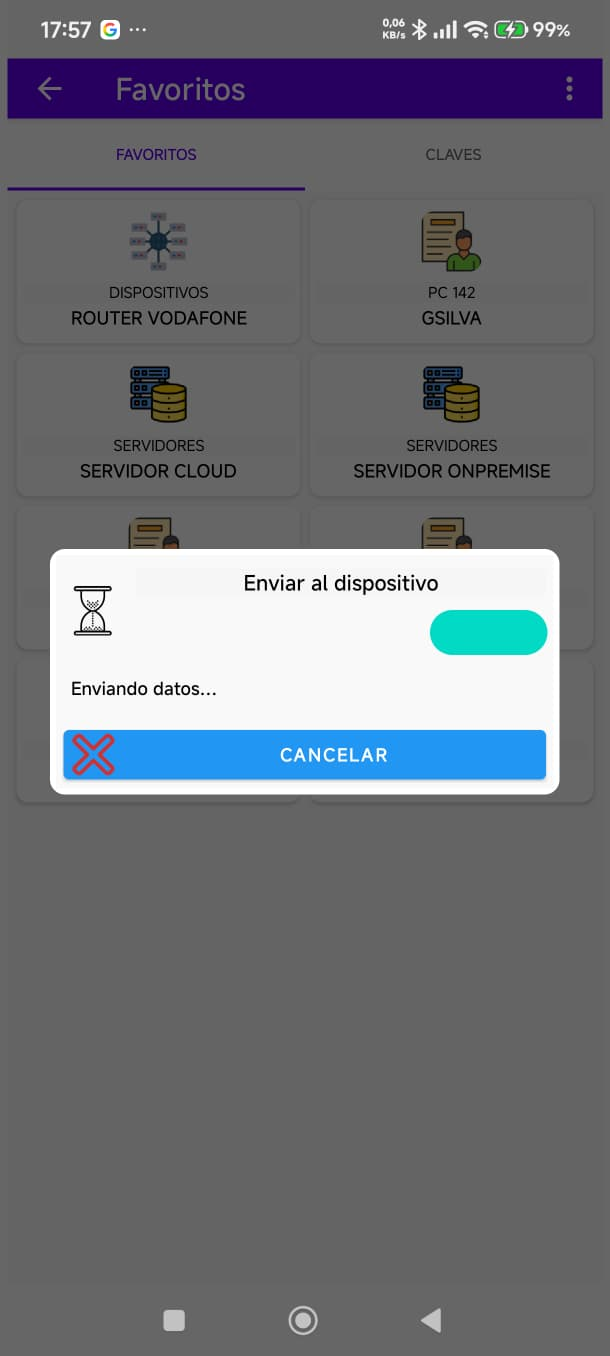
What happens: you choose the data on the phone; after you confirm (fingerprint or PIN), there is a countdown and the dongle types into the field that has the cursor on the PC, like a real keyboard (HID). The PC does not “receive a file”: it sees keystrokes.

  1. On the PC, click the correct box (username, password, OTP…).
  2. On the phone, open a favorite or the key entry.
  3. Choose Send username, Send password, Send OTP, etc., or “Windows login” for the sequence username → Tab → password → Enter.
  4. Confirm with fingerprint, entry PIN, or phone unlock if the app asks.
  5. Do not touch the PC during the countdown: the dongle will send at that moment. You can set that wait time in the ⋮ menu (default 3 seconds).
Safe test: the first time, open Notepad on the PC and send there, to see what is typed without risking a real login.
Important: if focus is on chat or another field, the password will be “typed” there. Always check the active window.
Send menu
Send actions from favorites
Send countdown
Confirmation and countdown before sending

Step 14 of 16

Scripts and free text

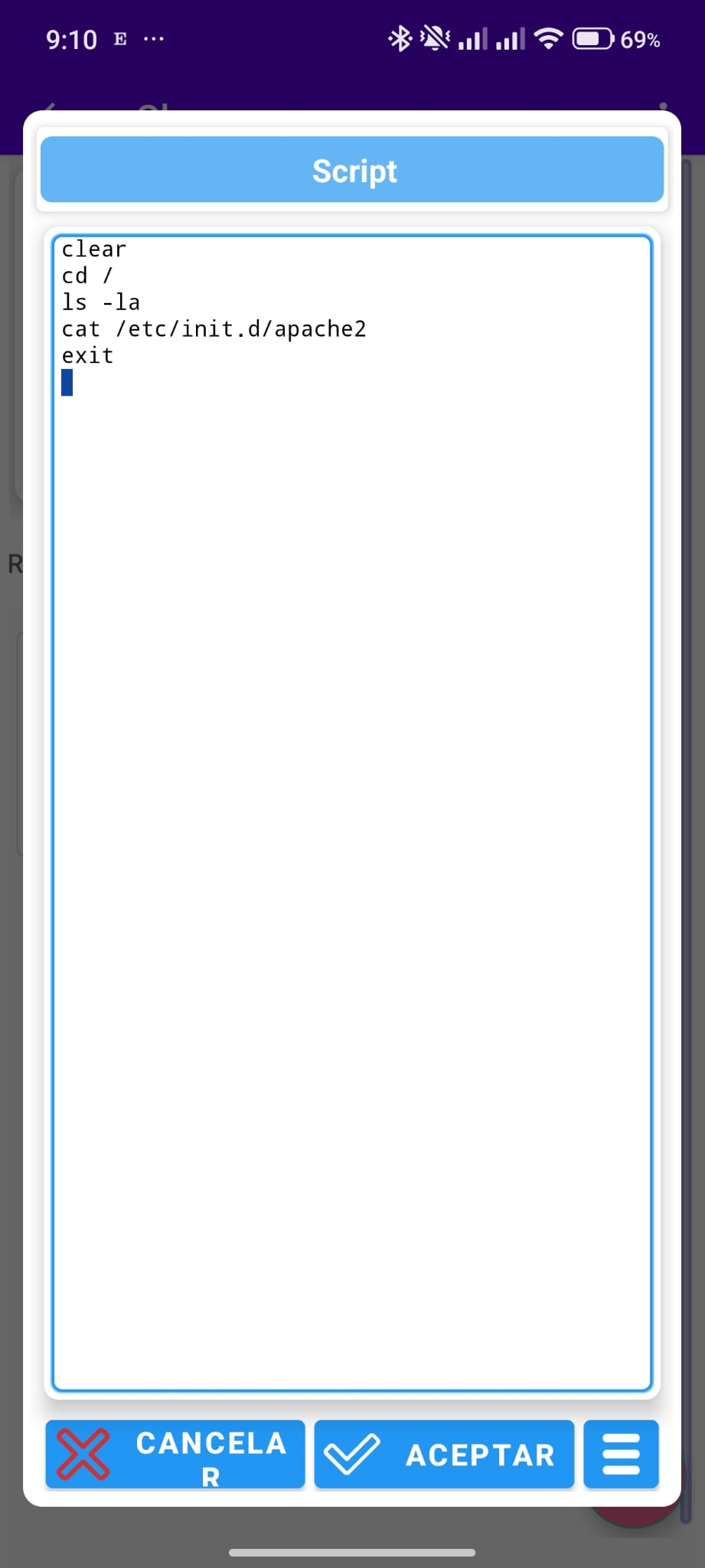
What they are for: besides username and password, an entry can hold a free text block (typed as-is) or a keystroke script (Tab, Enter, pauses…) to fill forms or server consoles without typing by hand.

  1. In the entry, open the Free text or Script tab.
  2. Free text is a phrase or paragraph the dongle will type continuously.
  3. The script follows IrKeys syntax (keyboard commands). The administrator usually prepares it.
  4. Send it like the rest: from the entry or from Favorites (“Send text” / “Send script”).
Tip: try first in Notepad. A mis-focused script can send Enter or commands in the wrong window.
Script example
Script / text example

Step 15 of 16

If the app is “managed”

What it means: IrKeys Manager can impose rules on your phone. It is not an app fault: it is company policy. You can still unlock, view (per rules), and send to the dongle.

  1. No editing: you do not create or change entries; you only use what you received.
  2. No personal backup: you do not export the vault; the administrator distributes updates.
  3. No adding keys: the + button does not create new entries.
  4. Keys marked deactivated on the PC do not arrive in the .irkeys.
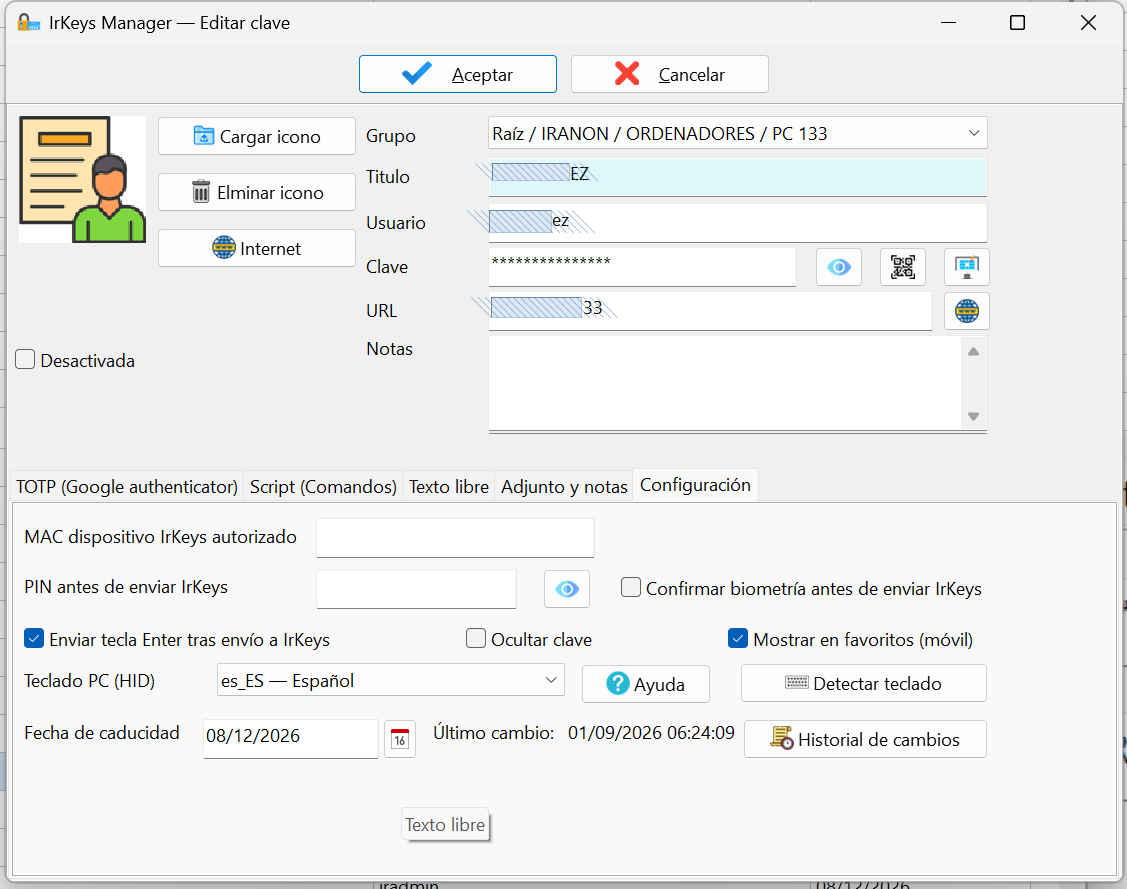
In IrKeys Manager: “Allow user editing”, “Allow backup”, and “Allow adding new keys” (and similar) define this behavior.
Tip: if you miss +, backup, or editing, ask IT before clearing the app data.
Policies in Manager
Policies in IrKeys Manager (PC reference)

Step 16 of 16

Common issues

Before calling support, check these cases. Many are fixed at the desk.

  1. I forgot the app password: there is no recovery. Only a previous backup (step 9) or a new package from the administrator into a new vault.
  2. Does not pair with Manager: revoke an old link, generate a new PAIR, verify the 6-digit PIN and that the QR or file is not truncated. Do not mix a .irkeys (keys) with a PAIR.
  3. Does not import the .irkeys: the phone must be paired with the same database that issued it; re-download the complete file.
  4. Dongle does not appear: first pair it in the phone’s Settings → Bluetooth (phase 1); then in IrKeys (phase 2). Check Bluetooth on, dongle powered by USB, near the phone, and Bluetooth (and sometimes location) permissions granted to IrKeys.
  5. It sends but the PC types nothing useful: the cursor is not in the field; keyboard layout does not match; try Notepad. On Windows login use the specific action, not send password alone.
  6. Fingerprint or PIN fails: use the IrKeys password; do not exhaust attempts (there is a wait between failures).
  7. I cannot create keys: usually managed policy (step 15), not an error.
Iranon support: info@iranon.com · 987 549 559 · 902 100 103
IrKeys
If it still is not resolved, contact support